
natific Portal Registration Process
The natific Portal provides a streamlined registration process for suppliers to create accounts and access various services easily. This guide will walk you through the necessary steps to register as a new user, either as a non-registered supplier receiving an invitation or creating an account directly through the portal.
Portal user guides:
- Quickstart Guide: Existing clients will learn how to log in and make purchases in the Portal.
- Quickstart Video: A video walkthrough of how to navigate the portal.
- Portal User Guide
Non-Registered Supplier Registration
Non-registered suppliers can begin the registration process in one of two ways:
Receive an Invitation from a Company:
- A company sends an invitation to your email.
- Open the invitation email, confirm your email address, and set up a password.
- Complete the registration by following the steps provided in the email.
Account Creation through the natific Portal:
1. Open https://portal.natific.com/

2. Click on Register as a new user

3. Type your email address and a password
More information on password requirements can be found on our Support Site

Confirm registration from the automatic email sent to the enterd email address.

Confirm email - A system message in your browser will confirm your registration and automatically log you in within 5 seconds.

4. Add your name in the Registration Wizard to finish registration
- Add your First Name and Last Name, then click on

Creating a New Customer
Creating a new customer is essential if you need to purchase any products. Before proceeding, ensure your company is not already registered to avoid duplication. If you try to create a company that is already registered, you will receive an error message. In that situation, ask your company's account administrator to invite you to the account.
5. Create a new Customer (Optional)
Note: creating a customer is a must to be able to buy any product.
- Add company billing address, then click on
 to add new Customer to natific.
 - Optionally, skip registration by choosing the
 button.
- If the Registration Wizard is not available after logging in, manage your user settings under
 menu. Customer can be created under
  menu.
menu. - If you created a Customer you will automatically be its Customer Admin user.
Password requirements
When you set or change your password, it must meet the following requirements:
- At least 6 characters long
- At least one uppercase letter (A–Z)
- At least one lowercase letter (a–z)
- At least one number (0–9)
- At least one special character (for example ! ? # $ % & *)
If your password does not meet these rules, the registration or password-change screen will let you know so you can adjust it.
Signing in: password or passkey
Once you are registered, you can sign in to the natific ecosystem in two ways:
- Password – enter your email address and your password.
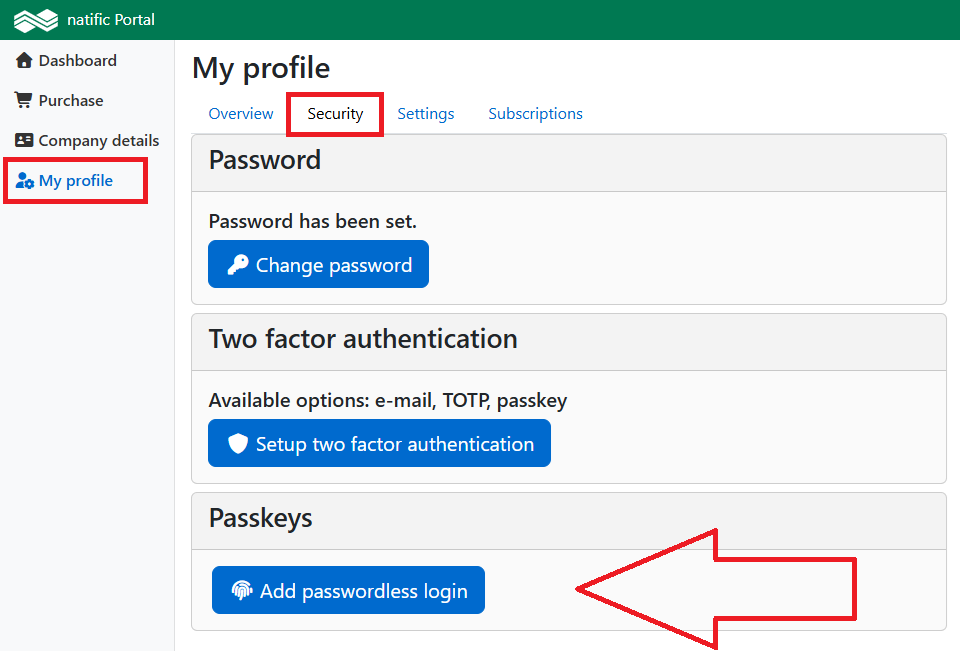
- Passkey – sign in with your device’s built-in security instead of typing a password. On the login page, enter your email address, then choose to continue with a passkey when prompted. If needed, select “Sign in with password” to use your password instead – you can try passkey sign-in again next time.
You set up and manage passkeys from My Profile > Security, where both your password and passkey options are shown:
What is a passkey?
A passkey is a modern, phishing-resistant alternative to a password. Instead of typing a password, you confirm your identity using your device’s built-in security – a fingerprint reader, face recognition, screen-lock PIN, or a hardware security key. The secret never leaves your device, so there is nothing to steal or reuse.
On Windows, passkeys typically use Windows Hello (fingerprint, face, or PIN). On macOS and iOS this is Touch ID or Face ID, and on Android it is the device screen lock.
Note for corporate or managed devices: In some corporate environments, Windows Hello or passkey creation may be disabled by your organization’s IT policy. If you do not see a passkey option or setup fails, contact your IT administrator – you can continue to sign in with your email address and password.
Note: Resetting your account password removes your existing passkeys for security reasons. You will need to set them up again afterwards.
Existing Company Management
If you are already part of an existing company, you can manage users and assign roles:
Customer Administration:
- Admins can invite new users, grant admin rights, and manage user access levels.
- Each company must have at least one Customer Admin
- Open user management from the menu.
- Add email addresses and optionally the first and last name.
- Send invitation letters to new users.
For more detailed instructions on user management and other functions, refer to the specific sections in the user guide.
This introduction aims to provide a clear and concise overview of the registration process, ensuring a smooth experience for new users. For any assistance, contact natific support at support@natific.com.