
Purchasing and Renewal Procedures
Follow the instructions to purchase or renew a subscription or a product. (PDF at the end)
PLEASE NOTE ! If you already have an account at natific.com, then please start at STEP 3 or STEP 4:
STEP 3
If you need to register or add a new USER in your company account.
STEP 4
If you need to renew or add a new software subscription for an existing user.
Step 1 – Go to the Portal
Go to : portal.natific.com, enter email address and click Log in.

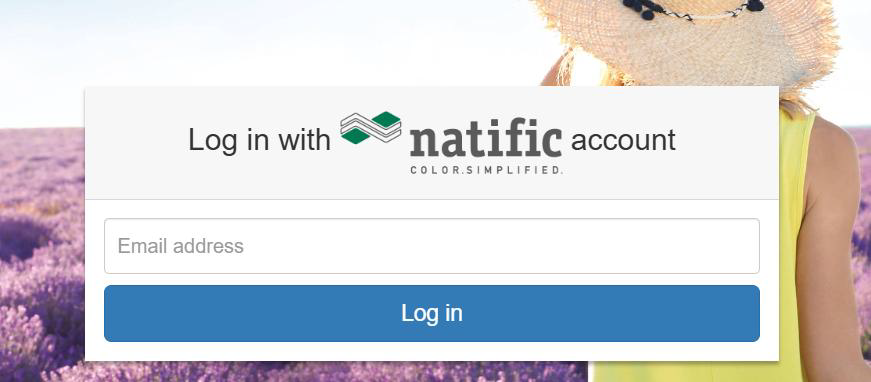
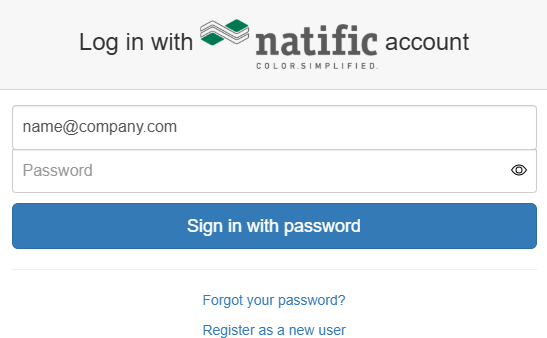
If you already have an account, you can sign in. If you do not, you can click on Register as a new user.
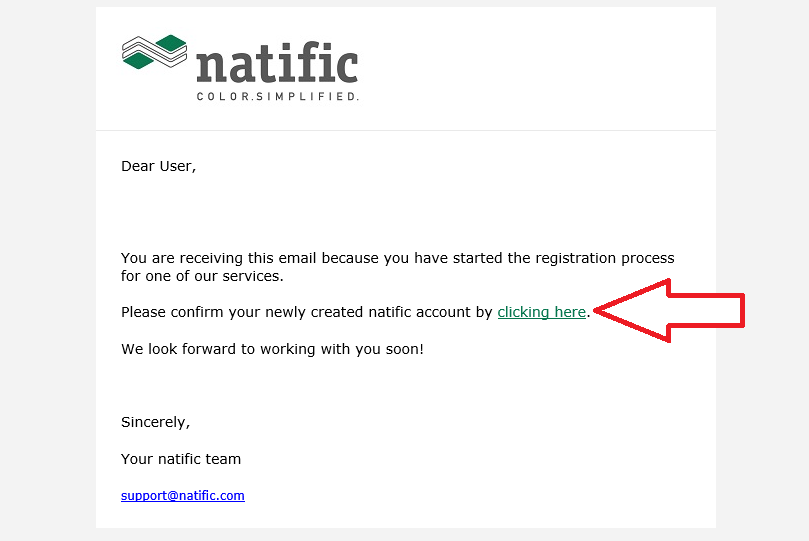
Confirm your registration in the automatic email sent to you and then set your password.
Step 2 – Register Your User and Company
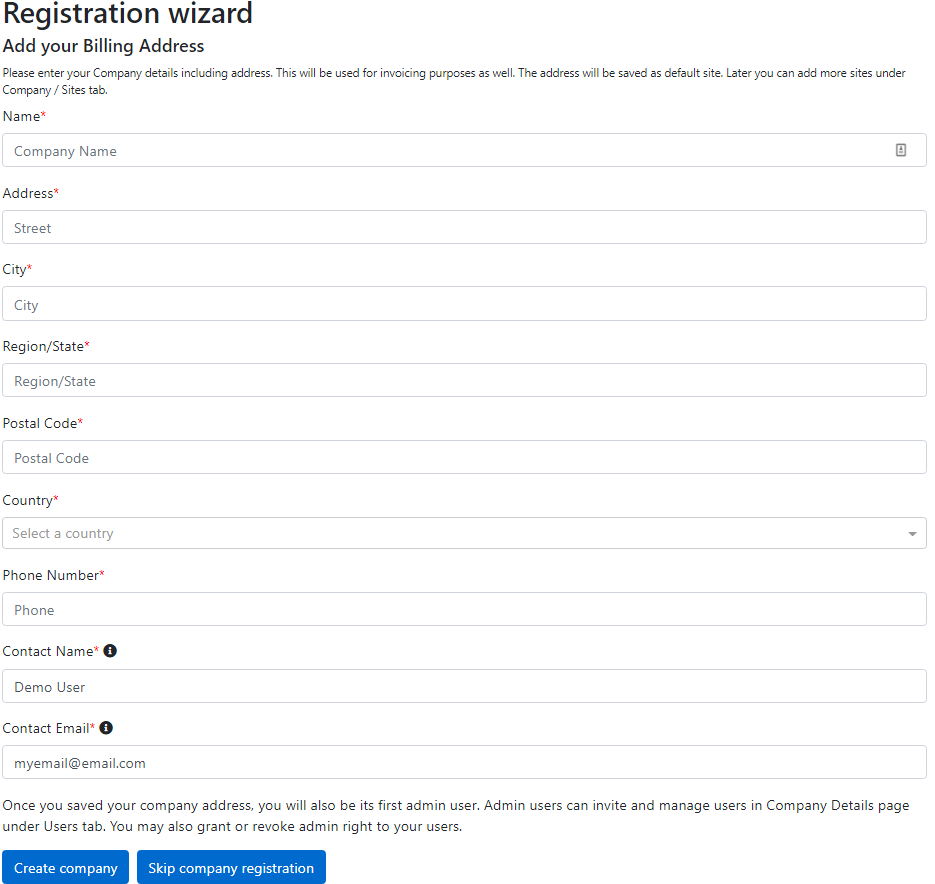
Follow the Registration Wizard to fill out your company and user information.
Please note that if a company is already registered using your same email domain, you will not be able to create a new company. Instead you must be added as a user in the existing company account. A company admin can do this or email support@natific.com if you do not know who the company admin is for your company.
Step 3 – Add Company/User Info
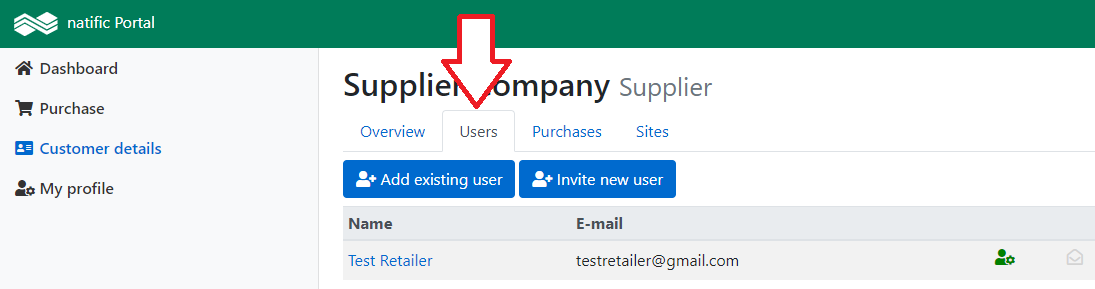
You can add users to your company account in the Customer Details menu. Click on the Users tab. Add a user with an existing natific account, or invite a new user to the portal.
Step 4 – Select & Purchase Software
From the Purchase Menu, select “Subscription”
Step 5 – Select the Retailer
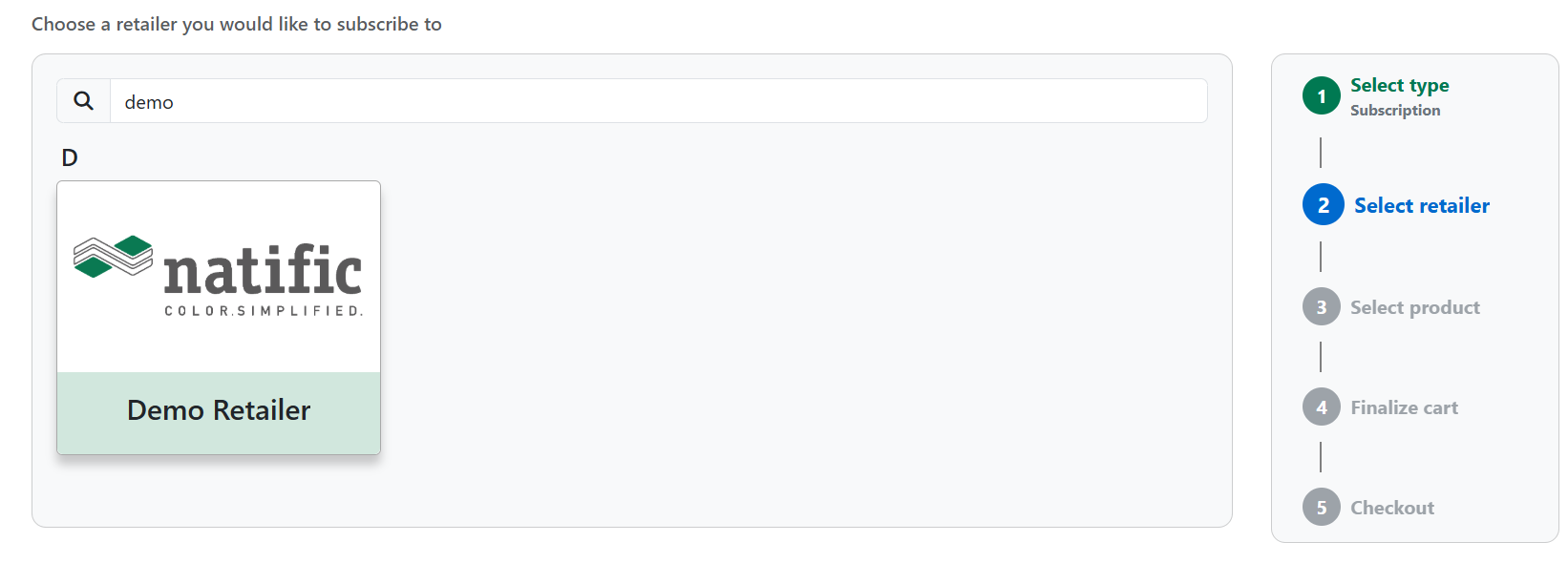
You can filter by retailer name. Please select the retailer you wish to purchase a subscription for. In this example the retailer is named “Demo Retailer”.
Step 6 – Select the Product
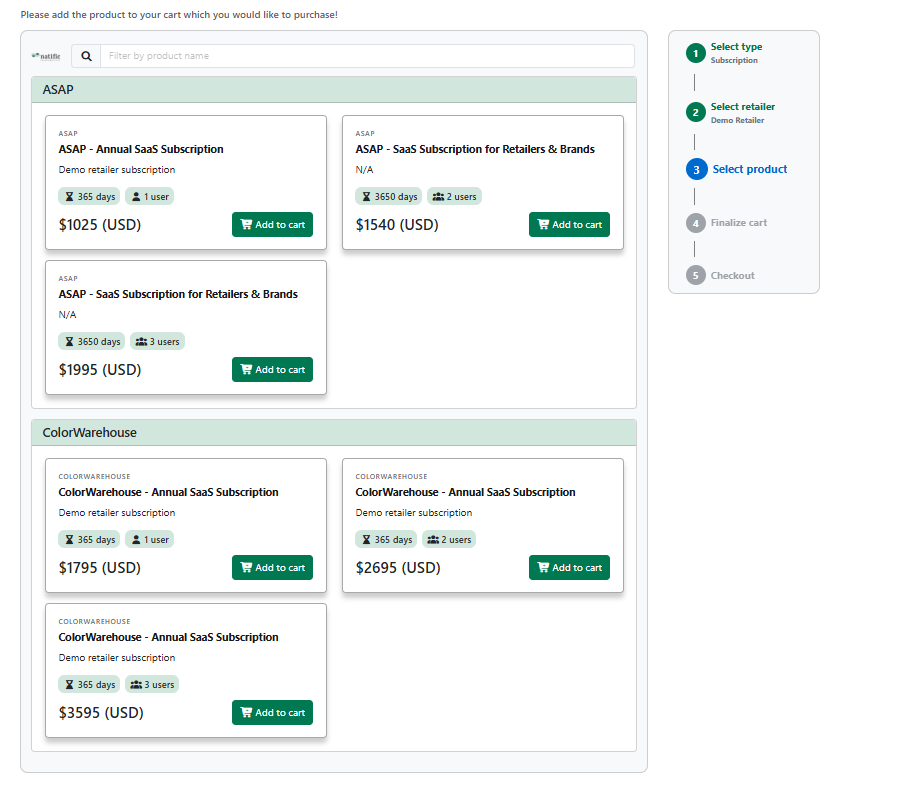
- Find the product you wish to purchase.
- Decide the number of users you wish to have and add the subscription to your cart.
- If you need more than 3 users, please email support@natific.com for pricing.
Step 7 – Select the Product
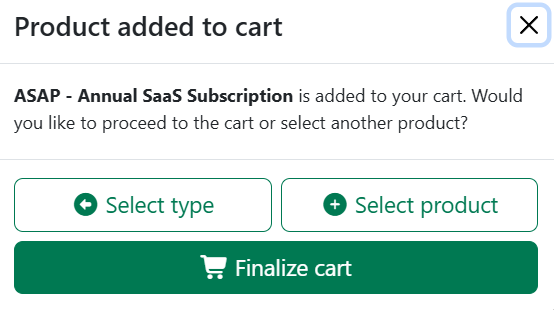
- If you are done adding subscriptions to your cart you may select “Finalize cart”.
- If you would like to add more subscriptions, you can click “Select product” and then search for more subscriptions to add.
Step 8 – Assign Subscription to User(s)
From the drop-down list, select the name of the user or users if a multi-user subscription. If the user is not listed, go back to step 3 and add the user.
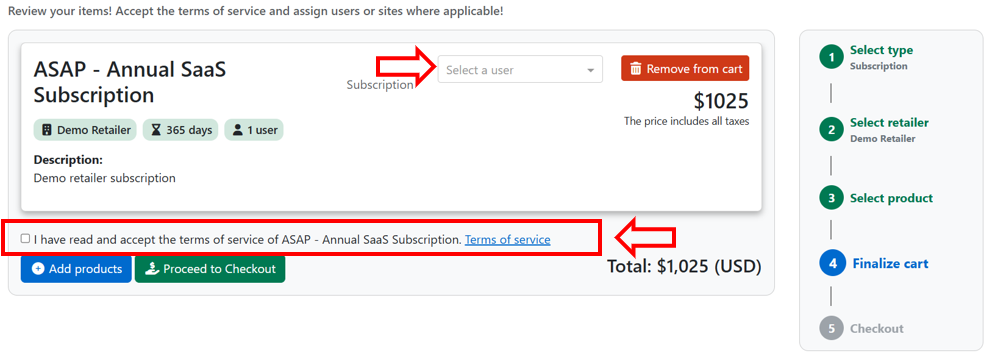
Check the box to accept the Terms of Service. When ready, click on Proceed to Checkout.

Step 9 – Checkout Summary
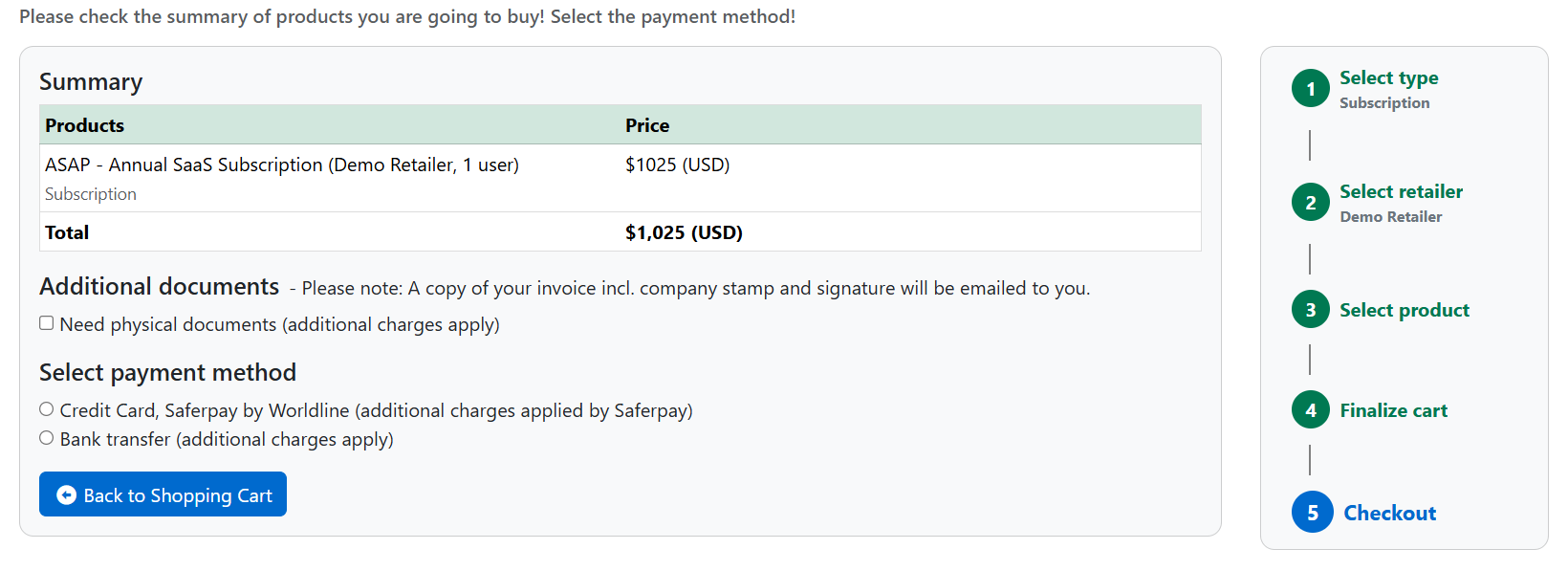
If you need individual administrational documents such as Sales or Contracts, e.g. with stamps and signatures then please tick the relevant box under ADDITIONAL DOCUMENTS. Then add a note about what you need.
Please note that a stamped and signed invoice will already be emailed with all purchases. If you ONLY need the invoice, no need to click this box.
Important: Physical documents will incur an additional charge of USD 75.
Choose your payment method.
Step 9.1 – Payment by Bank Transfer
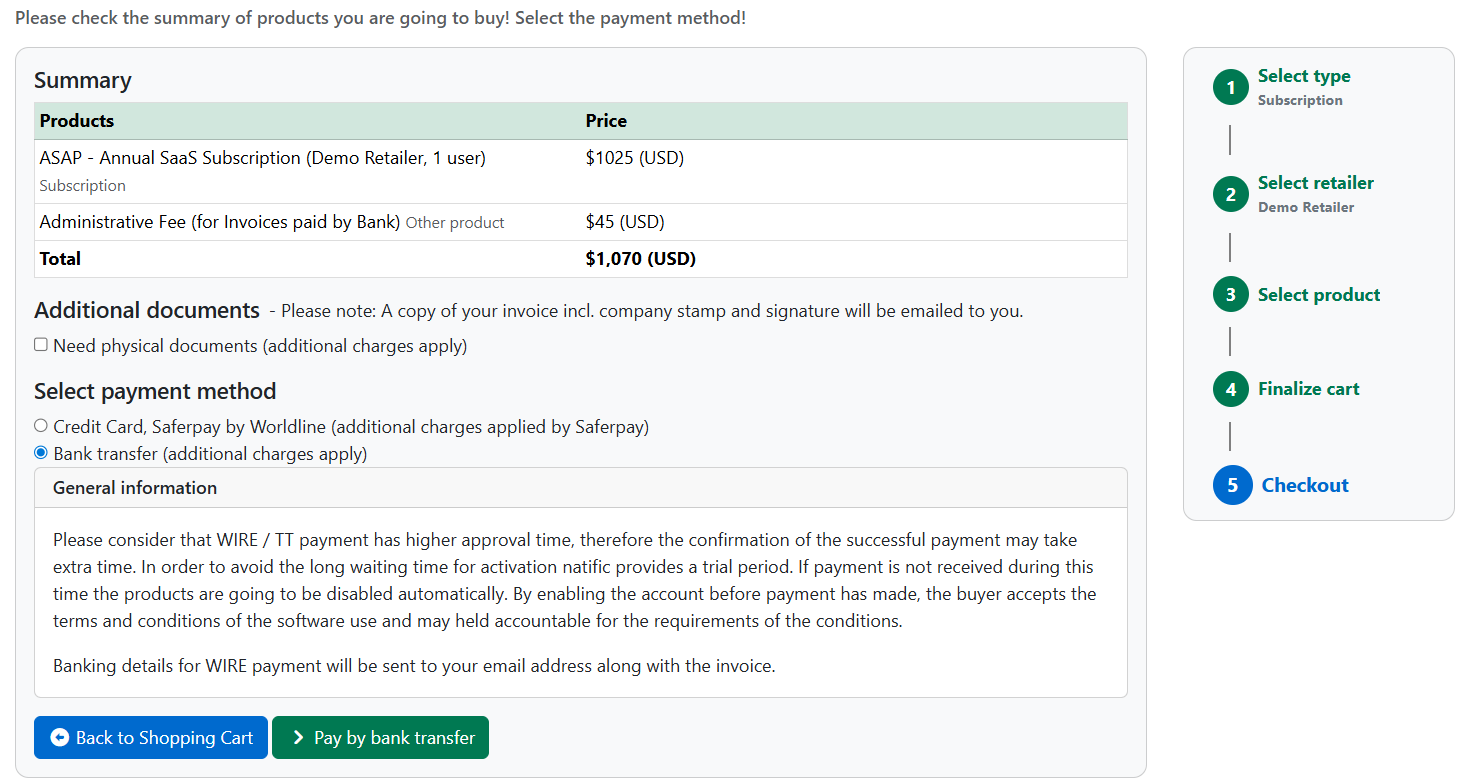
If you wish to pay by bank transfer, select Bank transfer and hit PAY BY BANK TRANSFER!
Note: You get a 10 days access so you can work instantly – the invoice will be issued within 48h after you have completed your check-out.
Step 9.2 – Payment by Credit Card
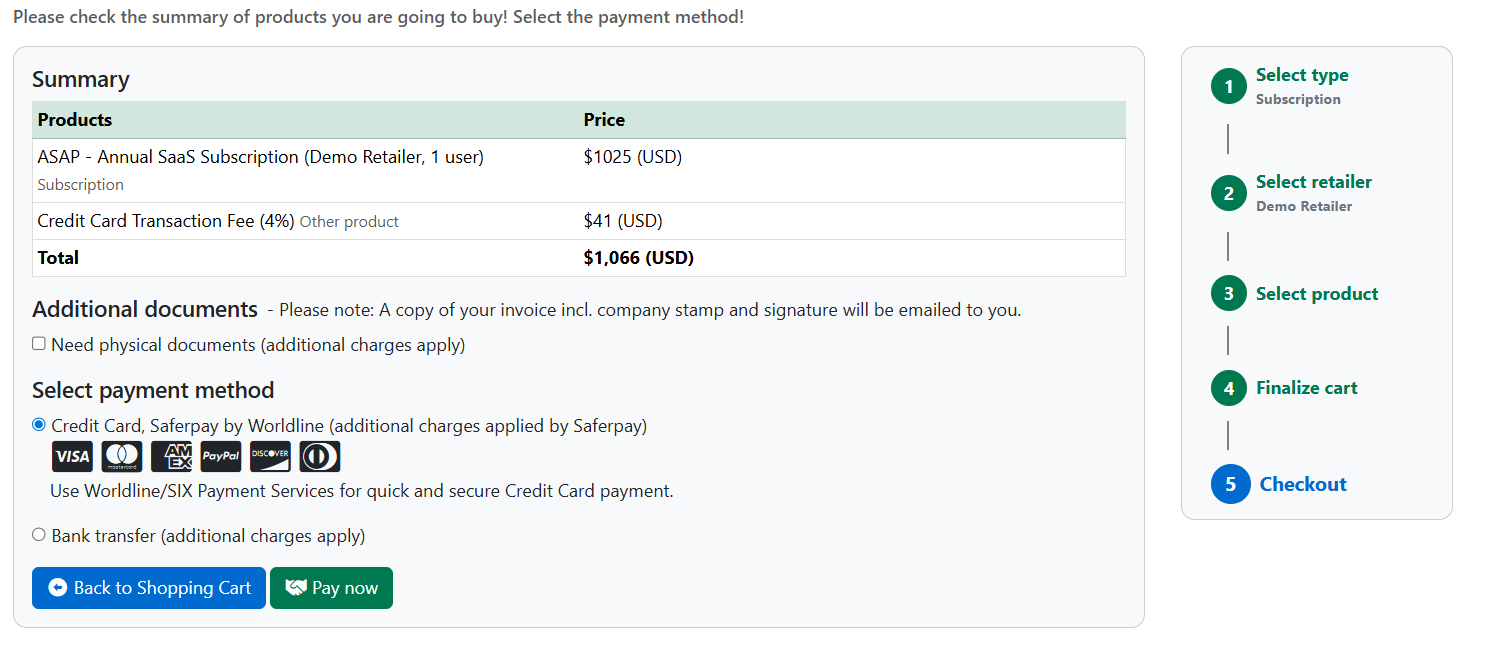
If you wish to pay by credit card, select Credit Card and click PAY NOW. You will be directed to Saferpay.
Important: Unpaid or partially paid invoices may result in the suspension of your subscription services.
Important: Each user for ASAP or ColorWarehouse must have an individual subscription. It is not allowed to share accounts.
Important: Specific countries are not able to purchase via a credit card. Please purchase the relevant subscription - you will then receive a separate invoice.
Step 10 – Access the System
Once you have finished checking out of your cart, you will have access to the system you purchased. Go to portal.natific.com and under natific Services on your Portal Dashboard click on the system you purchased:
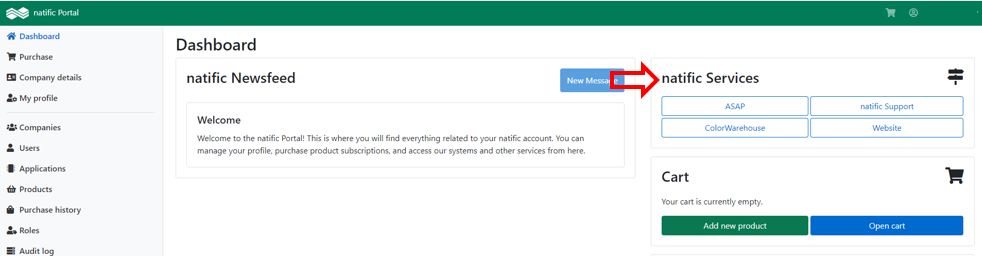
Please note that if you requested to pay by bank transfer, you will be given access to the system on a 10 day trial period. If you have not paid your invoice in 10 days, you will lose access to the system until payment is received. For any questions we ask you to contact us at support@natific.com
eServices
Online courses to learn the natific systems
eServices Courses
- After purchasing a subscription the system, the user will be automatically enrolled in online courses to teach them how to use the system.
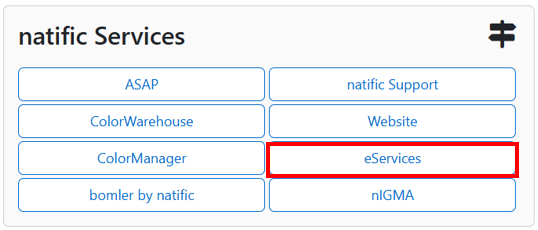
- You can access these courses from the dashboard at portal.natific.com and click on the eServices button. You can also go to eservices.natific.com directly.
- You should have 2 courses: SX5 QcExpress Software Experience for Suppliers and either SX1 ASAP Software Experience for Suppliers or SX3 ColorWarehouse Software Experience for Suppliers depending on which system you purchased.
Language of eServices Courses
Many of our courses come in multiple languages (English, Spanish, Korean, Mandarin, and Vietnamese).
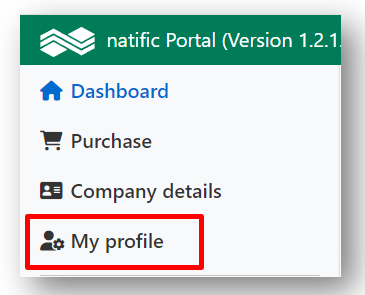
To change the language of your eLearning courses, go to portal.natific.com, click on "My profile" on the left side.
Then click on the "Settings" tab and at the bottom you will see "Language of the courses".
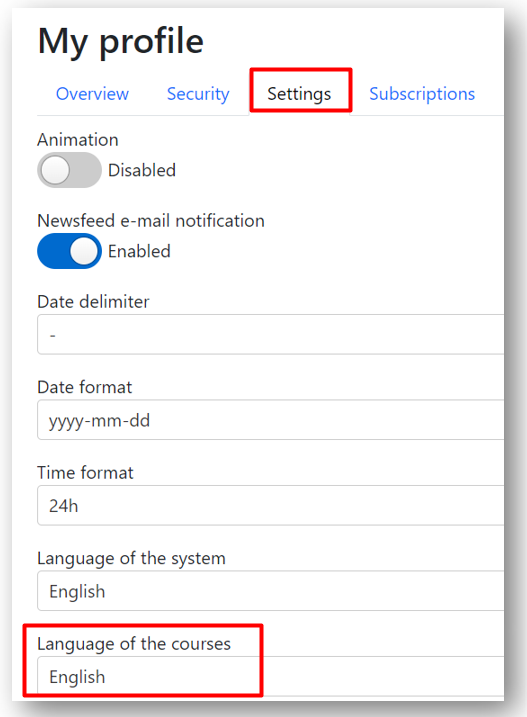
Once you save your preferences, your courses will be updated to your language of choice if they are offered in that language. Otherwise, they will remain in the default language of English.